<--- Clover PracticePay Help /Clover Devices
Troubleshoot broken or tampered devices
Get help with a tampered device
Replace or return a Clover device
Broken devices, equipment, and hardware can disrupt business operations, transactions, inventory management, and customer service. Issues may include a non-responsive screen, blank screen, black screen, failure to power on, connectivity problems, or other hardware malfunctions.
There are a few simple troubleshooting steps you can take to address the issue:
1. Ensure your device and equipment are plugged into a power source and that all cables are securely connected.
2. If needed, restart your device or perform a hard reboot on your equipment by holding down the power button for 10 seconds.
3. Check that the device is connected to a strong and stable Wi-Fi network. Restart your router if necessary.
4. Make sure your device is up to date with the latest software updates. Open the Settings menu by swiping down from the top of the device screen, and update the software if prompted.
5. Inspect the hardware for visible damage and reinsert any detachable components, such as the printer or card reader. If needed, replace any lost or damaged cables or hubs.
If troubleshooting steps do not resolve the issue, you may need to replace your device.
Get help with a tampered device
Clover detects tampering in different ways depending on the Clover device you use.
Inspect your device for tampering
When you unbox your device, inspect for signs of tampering. Here is a partial list of things to look for:
The exterior of the device shows evidence of cutting, disassembly, broken seals, and broken ports.
There are unusual wires or overlays connected inside the chip card slot, on or near the PIN-entry area.
Wires are loose, or the connector is broken.
The number of connections to the device is different.
The cables are a different color.
There are apparent changes to the resistance when inserting or removing a card from the chip card slot.
Your device is in a different location.
Your device has scratches, especially around the seams of the terminal window display.
Clover labels are missing or show signs of peeling.
Know about PIN entry devices
Clover devices come with sensors that are used to detect misuse or harm to your device. In rare cases, tampering may be detected if a device is dropped or shaken.
If our sensors detect tampering, you'll receive an email from Clover that a tamper has been detected. If you have questions or suspect that your device has been tampered with, contact Clover Support at (855) 280-4508 (Monday–Friday, 9 AM–8 PM Eastern Time).
Recognize a tampered Flex or Mini device
If your Flex or Mini device detects a tamper, three screens may appear:
In the Setup wizard, you may be automatically directed to the Get Help screen with the error ‘Device tampered, return to manufacturer’.
In the Setup wizard, a Tamper Detected screen may appear.
If the device detects a tamper after activation, the following error is displayed in the Sale, Refund, Phone Sale, Authorizations, and other apps: ‘Device has malfunctioned’.
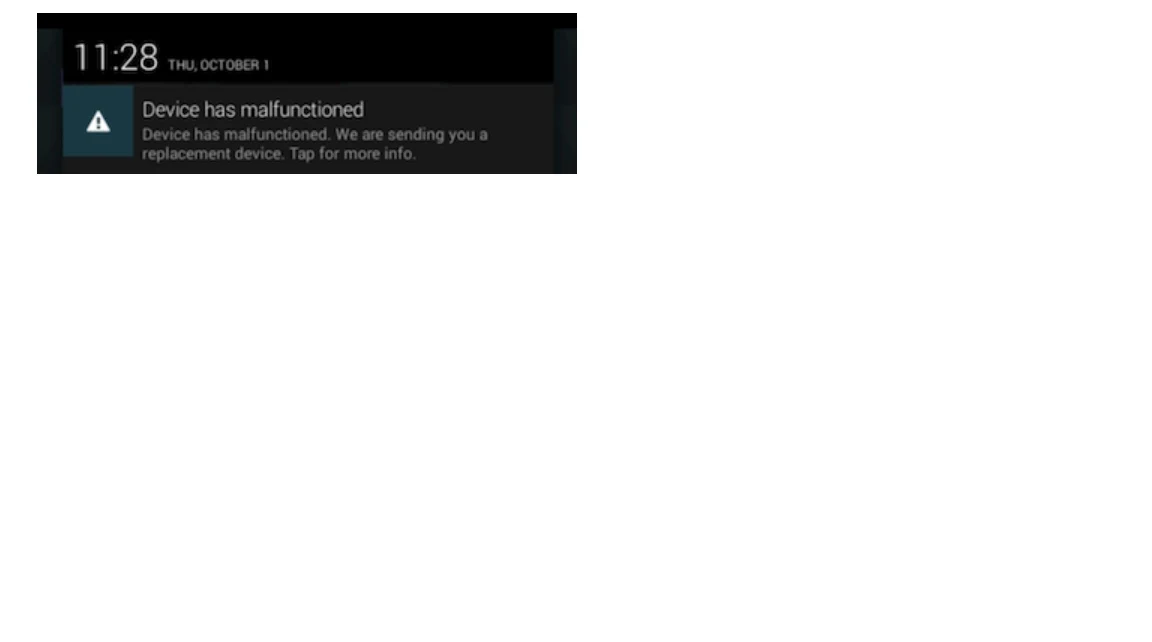
The only way to remove the tampered message is to request a new device from Clover Support.
Replace a tampered device
It is essential to replace a tampered device as soon as possible to restore full payment functionality. If tampering is detected, encryption and anti-tamper mechanisms continue to safeguard cardholder data during payment processing. However, PIN-entry payments are disabled.
You can continue accepting transactions that don't require a PIN and use your device to run other aspects of your business, such as taking card-not-present payments on the Clover PracticePay dashboard.
Replace or return a Clover device
There are a variety of reasons why you may want to replace or return a Clover device, including damaged devices, device upgrades, or the completion of your contract with Clover. For both replacements and returns, you need to contact Clover Support at (855) 280-4508 (Monday–Friday, 9 AM–8 PM Eastern Time) to initiate the process. They will create a shipping label for the device you want to return. In case of a replacement, support will also create a shipping label for the new device being shipped to you.
Prerequisite: You must be an owner or admin to request a replacement device.
Request replacement for a Flex or Mini device
1. On your device, open the Setup app.
2. Tap Payments.
3. Tap PIN Entry.
4. Tap Prompt for PIN.
5. Tap Save.
6. Tap 'I need to accept PIN payments, please send me a replacement Clover device that accepts PIN payments'.
7. Tap OK.
When your device ships, you’ll receive a notification email from Clover Support with your activation code and tracking information for your shipment. If the device is still within the warranty period, the replacement device is provided free of charge. Shipping and handling fees may apply.
Activate your new device and return the tampered device in the same box that you received your replacement device. You'll find a return shipping label included in the box.
Print shipping labels
You will receive an email from Clover Support that contains the shipping label.
Pack Clover devices
1. Place your device in a carton and pack it securely to prevent damage during shipping.
2. Make sure you include all cables, power supplies, and accessories to avoid being charged for missing parts.
3. Securely seal the carton and attach the printed shipping label to the carton.
4. Be sure that any other label is removed or covered and that the new label is undamaged.
Ship Clover devices
1. Record each tracking number for each device or equipment being returned.
2. To ship your package, do the following:
Schedule a UPS pickup, or
Drop the package off at a convenient UPS location.
3. Pay any pickup fees per UPS rates and policies.
4. Track your package by entering the tracking number on www.ups.com or calling 1-800-PICK-UPS.
Purchase new cables and hubs
Over time, essential components like cables and hubs can go missing, wear out, or become damaged. These items may not be considered accessories, but they are essential for the proper functioning of your Clover POS system. If you’ve recently purchased a new device or added a machine to your setup, be sure to have the right cables and hubs on hand.
Replace lost or worn-out components
Identify which power cords or hubs are missing or damaged. Common components include power adapters, USB cables, Ethernet cables, and connection hubs.
To order replacements for your device and purchase the correct part, contact Clover Support at (855) 280-4508 (Monday–Friday, 9 AM–8 PM Eastern Time).
Tips to prevent future issues
Cable management: Identify each cable’s purpose, making it easier to reconnect them if they get unplugged. Use organizers to keep cables neat and prevent tangling around your POS machine.
Regular inspections: Periodically check cables and hubs for signs of wear and replace them before they fail.
Contact us
Clover Support at (855) 280-4508 (Monday–Friday, 9 AM–8 PM Eastern Time)