Take payments using Online Bill Pay
Your Clover PracticePay account includes a patient-facing online payment feature. It gives patients a convenient way to pay outstanding balances anytime, from any device. For practices, this feature helps reduce paper billing, speed up payments, and improve the overall patient experience. Your Online Bill Pay site is optimized for all web browsers and is designed to be mobile-friendly.
Get started with your Online Bill Pay site
Your Online Bill Pay site is branded to match your patient experience, including headers, footers, and logo.
If your practice has multiple locations, you can set up a drop-down list that displays all associated locations, allowing patients to select the one where they received care. The names in the list are fully customizable to make them easy for patients to recognize, for example, “Dr. Smith’s Main Street Location” or “Dr. Smith’s Elm Street Location.”
When you set up the Online Bill Pay page, you receive your customized Online Bill Pay link and custom QR code that’s connected to your Online Bill Pay site. These are emailed to you during onboarding. Contact Clover Support at (855) 280-4508 (Monday–Friday, 9 AM–8 PM Eastern Time) to find your payment link and QR code. Clover Support can also assist with generating new links for new locations and connecting one singular link to multiple locations.
Prerequisite
1. Patients must have a record in Patient Express to make payments on the Online Bill Pay site. See Add and Edit Patients in Patient Express for instructions.
2. Know the patient payment link and the custom QR code that’s connected to your Online Bill Pay site. You can also find the Online Bill Pay link in Patient Express by selecting Text-to-Pay in the Send Message column.
Promote your Online Bill Pay link and/or QR code
1. Display your Online Bill Pay link and/or QR code in the following easy-to-find places:
In your billing statements: When opening statements, patients are likely to first check to see what they owe, and then look for where they can pay in the most convenient way. Include your Online Bill Pay link and QR code so patients can open your payment site using either method.
In staff email signatures: If you send e-statements, include your Online Bill Pay link in the body of your email. For other types of email communications, you can add your Online Bill Pay link to email signatures to inform patients of your new payment method.
Within Text-to-Pay messages: If you use text messaging to communicate with your patients, insert your Online Bill Pay link in messages to reach patients with a convenient payment method. Your online payment site is mobile-friendly for seamless payments, start to finish, right through your patients’ phones. In Clover PracticePay, you can insert your Online Bill Pay link by sending Text-to-Pay messages through the Patient Express feature.
2. Promote this convenient option to patients.
Encourage front desk staff to inform patients during check-in/out.
Send an email announcing the exciting news!
3. Tell your patients about online payments. Before patients can begin making online payments, they need to know about their new payment option. Many patients embrace online payments right away, while some have follow-up questions. We recommend proactively communicating with your patients to introduce online payments and to provide answers to commonly asked questions.
Example:
[Practice Name] now accepts online payments! Pay your balance securely online:
[Your Online Bill Pay link (and QR code if the announcement will be printed)]
There is no username or password required to make a payment.
Patient online payments are powered by Clover PracticePay®.
4. Flyers at the front desk and/or checkout station, or an email announcement, are all effective ways to inform patients. The language can be as simple as the following and can include all or some of the FAQs.
Learn about Patient Authentication for online patients
Patient Authentication is an anti‑fraud feature that restricts access to your Online Bill Pay site to only those patients who have been added to Patient Express.
Patient Authentication is enabled by default. When it is enabled, patients must verify their identity with the following information before they can enter your online payment site to make a payment:
Patient ID; Best practice: Include the patient’s Patient ID in their Text‑to‑Pay message.
First name
Last name
Date of birth (DOB)
If the information a patient enters does not match a record in Patient Express, they will see the message Invalid Credentials.
Accept partial payments through Text-to-Pay
Online patient payment sites support partial payments for Text‑to‑Pay messages.
How it works
When you enter a payment amount in a Text‑to‑Pay message, that amount is autopopulated on the Online Bill Pay page when the patient selects the link.
You can choose whether patients are allowed to edit the amount. When this option is enabled, patients may enter a lower amount and submit a partial payment. This provides flexibility, letting you collect payments over time rather than waiting for the full balance to be paid at once.
If a patient enters an amount higher than the one you set in Clover PracticePay, they see the message: Maximum amount payable is <amount entered in Clover PracticePay>.
To enable partial payments for Text‑to‑Pay on your Online Bill Pay site, contact Clover Support at (855) 280-4508 (Monday–Friday, 9 AM–8 PM Eastern Time).
Post online payments and view reports
1. Log in to Clover PracticePay.
2. From the left, select Reports > Transaction Search.
3. Apply search filters in Transaction Search, and then select Search.
4. To post the payment to an electronic record, do one of the following:
Select the Payment ID link to open the Transaction Details pop‑up, then select Post.
In the Search Results table, select Post next to the transaction.
For more information, see Reports and payments posting.
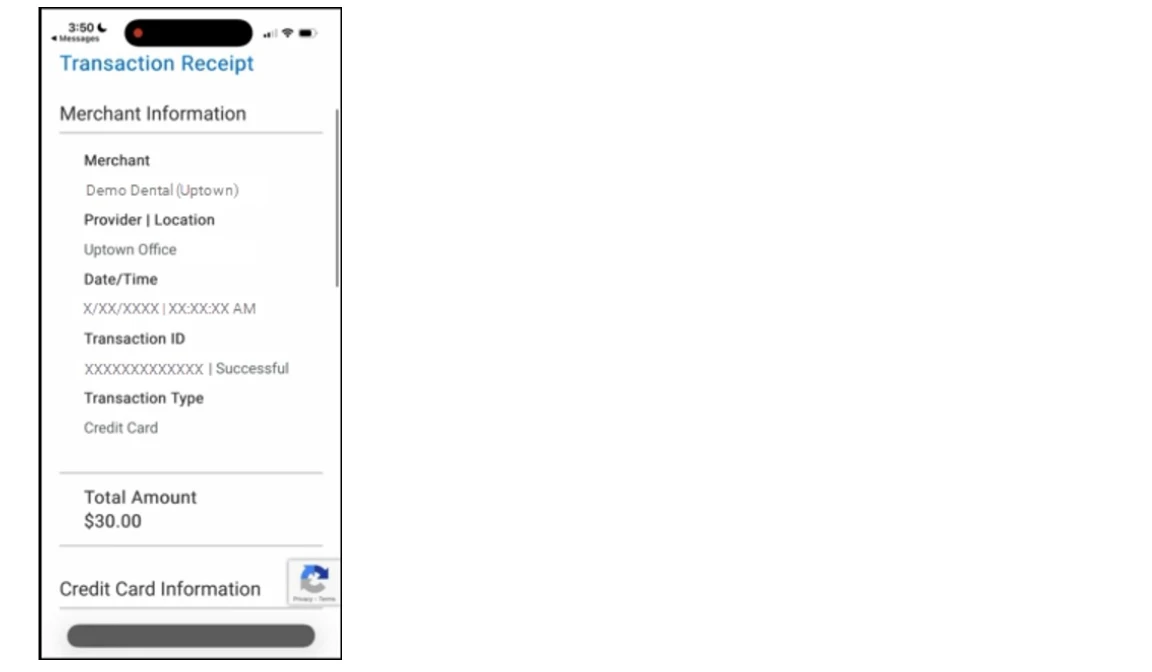
Send Online Payment Receipts
Online payment receipts can be emailed, printed, or both.
Email Receipts
To receive an emailed receipt, patients enter their email address along with their billing information. When they submit their payment, the receipt is automatically emailed to this address.
To make Email Address a required field and ensure that all patients receive a receipt for online payments, contact Clover Support at (855) 280-4508 (Monday–Friday, 9 AM–8 PM Eastern Time).
Print Receipts
The Transaction Receipt screen appears when a patient selects Submit Payment. Patients can select Print in the upper right corner to print their payment receipt.
Online payments FAQs for patients
Are online payments secure?
Yes, we take the security and protection of your personal and financial information seriously. The online payment page meets all data security standards and offers a fully HIPAA-compliant payment processing experience.
How do I receive a copy of my receipt?
Enter your email address in the Billing Information section to receive an electronic copy of your receipt. You can also select Print on the Transaction Receipt screen.
Does the balance on my account automatically update after I make a payment?
Payments take up to 24 hours to reflect on your account.
Which forms of payment are accepted?
Visa
Mastercard
American Express
Discover
HSA and FSA debit cards
Online Payments FAQs for Clover PracticePay users
Are online payments secure?
Yes, the Online Bill Pay site meets all security standards and is fully HIPAA-compliant.
What is the Online Bill Pay link and QR code for?
The Online Bill Pay link is unique to your account and allows patients to securely pay their outstanding balances online. The QR code directs patients to the same link, making it easy to collect payments when displayed on your website, in your office, or on printed materials.
Can I add a button to my practice website that allows my patients to pay their bill online?
Yes, the Online Bill Pay link can be put behind a "Make a Payment" or similarly named payment button on your website.
How do I get my Online Bill Pay link and QR code?
You will receive a customized Online Bill Pay link and QR code for your payment site during onboarding. You can also find your Online Bill Pay link in Patient Express by selecting Text‑to‑Pay in the Send Message column.
If you cannot locate your link or QR code, contact Clover Support at (855) 280-4508 (Monday–Friday, 9 AM–8 PM Eastern Time). Clover Support can also generate new links for additional locations or help you connect a single link to multiple locations.
How do patients get a receipt?
Patients are given the option to receive an email receipt or to print one after payment.
When will I see payments in Clover PracticePay?
Patient payments appear within 24 hours.
Which payment methods are accepted?
Visa
Mastercard
Amex
Discover
HSA/FSA cards
Can I add our logo to the Online Bill Pay link?
Typically, your logo is added by the Product Delivery team when your Online Bill Pay link is first set up. If the logo was not added during onboarding, it can be uploaded later.
To add your logo to your Online Bill Pay link, call Clover Support at (855) 280-4508 (Monday–Friday, 9 AM–8 PM Eastern Time). During the call, a support representative will upload the logo for you. Before calling, make sure you have the logo file ready in JPEG or PNG format.
Can patients make partial payments through Text‑to‑Pay?
Yes. Online patient payment sites support partial payments for Text‑to‑Pay messages.